 NetSpeed
NetSpeed › Guides
How to show internet speed in the status bar on Android
Want to see your live download and upload speed next to the clock, all the time? Android doesn't show it on most phones, but a net speed indicator app can. Here is how to do it with NetSpeed in under a minute.
Show net speed in the status bar, step by step
- Install NetSpeed. Get NetSpeed: Internet Speed Meter from Google Play and open it. It's free, with no ads and no account.
- Pick "Status bar". On the "Where should it show?" screen, choose Status bar. Choose Both if you also want the live speed bubble by the camera. Tap Continue.
- Allow notifications. Android only lets an app put an icon in the status bar if it may post a notification, so NetSpeed asks once. That notification carries the live speed.
- Style it. In the Status bar section pick an icon style: Auto (the busier direction), Arrows ↕ (upload over download), Arrows ↔, Stacked or Compact. Then set the font and text size (70% to 140%).
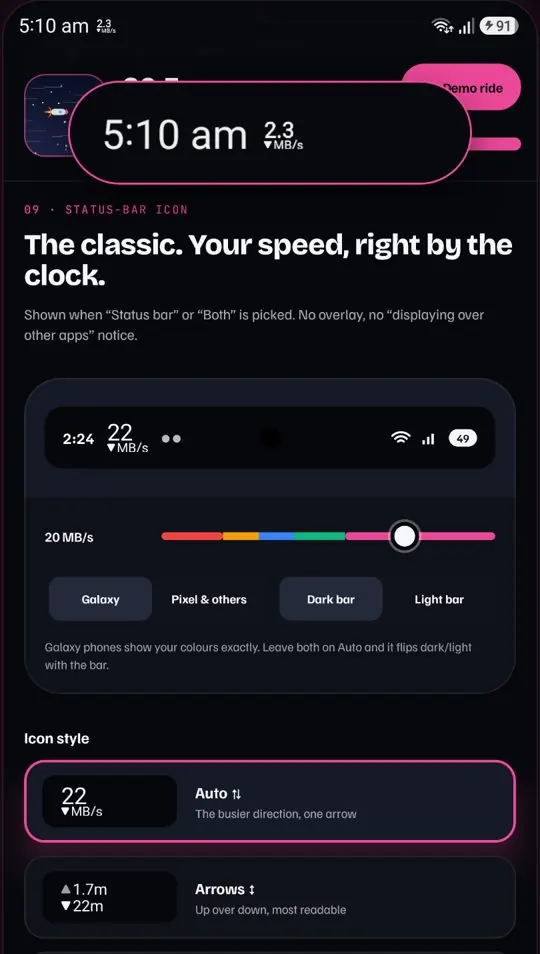
What the numbers mean
The status-bar icon shows how fast data is moving right now, measured once a second from Android's own traffic counters. It counts everything on the phone: Wi-Fi and mobile data (4G, 5G), every app. ▼ is download, ▲ is upload. Units switch between KB/s and MB/s as the speed changes.
This is your live usage speed, not a speed test. If nothing is downloading, it reads close to zero even on a fast connection. To see your connection's maximum, start a big download or a video while you watch the number.
Tips
The icon is hard to read
Pick Compact or Auto: Android limits how wide a status-bar icon can be, and a narrower icon lets the digits grow. Raise the text size up to 140%.
The speed disappears after a while
Some phones close background apps to save battery. Open NetSpeed's health check: it shows which battery setting to change so the meter keeps running.
Want the speed in colour or bigger?
Try the floating speed bubble by the camera. It can be any size, with live scenes that speed up with your connection.
Private by design. NetSpeed has no internet permission at all, so nothing it measures can leave your phone.