 NetSpeed
NetSpeed › Guides
How to add a floating internet speed meter on Android
A floating speed meter shows your live internet speed on top of whatever you're doing: a game, a video, a download. NetSpeed puts it in a small bubble right beside the camera, where it never covers your content.
Set up the floating speed bubble
- Install NetSpeed. Get NetSpeed: Internet Speed Meter from Google Play and open it.
- Pick "Bubble". On "Where should it show?" choose Bubble (or Both to keep the classic status-bar number too) and tap Continue.
- Allow "Display over other apps". This Android permission is what lets any floating widget stay on top. NetSpeed uses it only to draw the bubble.
- Place and style it. In the Bubble section choose where it sits, its size and its look. Every change is previewed live.
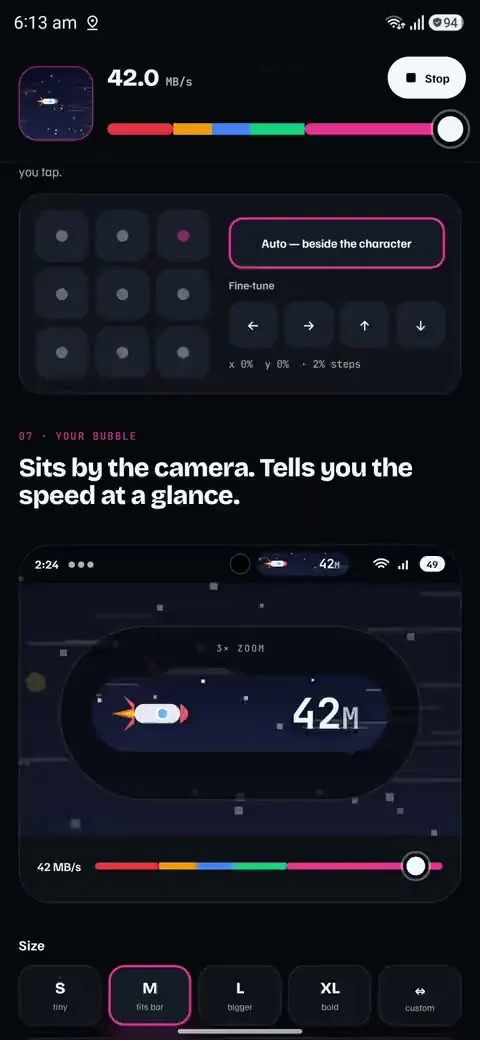
Where the bubble can go
Smart (default) finds the gap between the camera and your Wi-Fi and battery icons, so it never sits under the camera or over system icons. Left of camera puts it between your notifications and the camera. Under the clock places it top-left, just below the bar. Free lets you drag it anywhere, or nudge it pixel by pixel with the arrow pad when your phone blocks touches inside the status bar.
Make it yours
- Size: S, M, L, XL, or an exact width and height.
- Live scenes: a snail when the speed crawls, a rocket when it flies, plus 10 more scenes and motion themes.
- Character zoom: Normal, Big or Huge, so the character reads at status-bar size.
- Text: 12 fonts, bold or regular, letter spacing.
- Colours: background, text and outline, or fully transparent with just the character.
Does a floating speed meter drain the battery?
Not NetSpeed's. It reads Android's traffic counters once a second and redraws a tiny view; there is no speed test running in the background. In bubble mode it doesn't even need a notification. If your phone closes it to save battery, the built-in health check shows the one setting to change.
No internet permission. NetSpeed can't send anything anywhere: no ads, no trackers, no account.